
How to Set Up Your YubiKey 5 NFC for Your PA Account
Overview
This guide shows you how to set up your YubiKey 5 NFC so you can sign in securely to your PA account using the Microsoft portal.
No technical experience is required—just follow the steps in order.
What You’ll Need
Before you start, make sure you have:
- Your YubiKey 5 NFC
- A computer with a USB‑C port
- Your account username and password
- Your PA account username and password
Important:
- Use a regular browser window (not InPrivate (Edge) / Incognito mode (chrome).
- Keep your YubiKey plugged in for the entire setup.
Step‑by‑Step Setup Instructions – Take your time and follow each step carefully.
- Step 1: Plug In Your YubiKey
- Insert your YubiKey into your computer’s USB‑C port.
- Step 2: Open Edge via Guest Mode
-
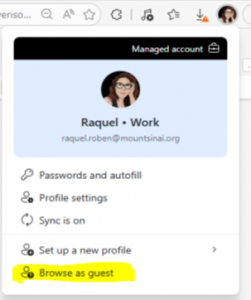
- Launch Edge and then on the top right corner, click on your profile picture and select the Browse as guest option.
-
- The navigate to https://mysignins.microsoft.com/security-info
- Sign in with your PA account when prompted.
Step 3: Open Security Settings
-
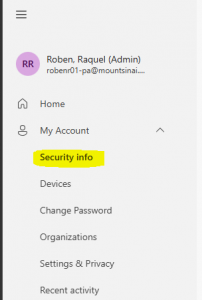
- 1. Select Security Info
.
-
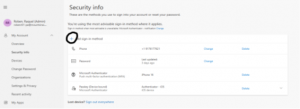
- 2. Click Add (+) to add a new sign‑in method.
- Step 4: Choose Security Key
-
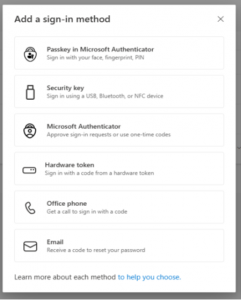
- 1. Select Security Key.
-
- 2. Click Next.
- Step 5: Start the Setup
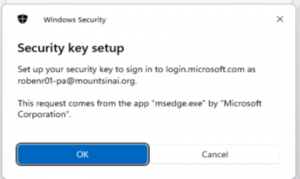
-
- When prompted follow the on‑screen instructions Click OK
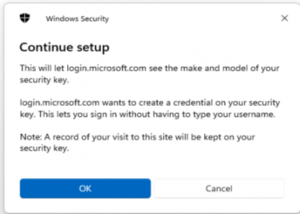
-
- Click OK
-
Step 6: Confirm Setup
- Click OK when asked to continue.
-
Step 7: Create Your PIN
- You will be asked to create a 6‑digit to 12-digit PIN for your YubiKey.
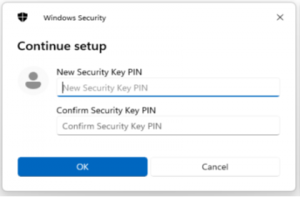
-
- Choose a PIN you can remember
- Enter it again to confirm
- Click OK
- Tip: This PIN will be required when you sign in using the YubiKey.
-
Step 8: Touch the YubiKey
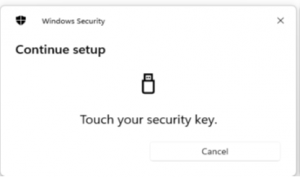
-
- When prompted
- Place your finger on the gold circle of the YubiKey
- Note: The light may blink—this is normal
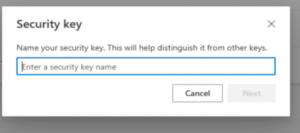
- Step 9: Name Your YubiKey
-
- Give your YubiKey a name (for example: Work Laptop Key).
- Note: This helps you recognize it later if you add more sign‑in methods.
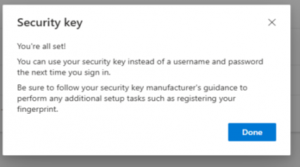
- Step 10: Finish
-
- Review the confirmation message
- Click Done
Check That It Worked
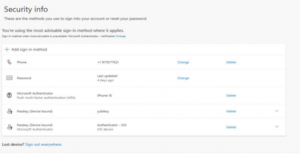
- You should now see your YubiKey listed under Security Info.
- If you see it listed, setup is complete
Common Questions
- Do I need my YubiKey every time I sign in?
- Yes. Once you set it up, you will usually be asked to use your YubiKey (and PIN) when signing in from a new device or browser.
- What if I forget my YubiKey PIN?
- If you forget the PIN, you won’t be able to use the key. Contact your Helpdesk for help resetting or replacing the key.
- Can I use the same YubiKey on more than one computer?
- Yes. You can use your YubiKey on multiple work devices as long as it stays registered to your PA account.
- What if I lose my YubiKey?
- Contact the Helpdesk immediately. They can disable the key and help you set up a replacement.
- Will this work on my phone or tablet?
- This setup guide is for computers. Mobile sign‑in may work differently depending on your device and browser.
Warnings – Common Setup Mistakes to Avoid
- Using a private or InPrivate browser window
- Private browsing prevents the setup from completing the registration. Always use a normal browser window.
- Removing the YubiKey too early
- Do not unplug the YubiKey until setup is completely finished and you click Done.
- Choosing the wrong sign‑in method
- Make sure you select Security Key and then USB device when prompted.
- Forgetting your PIN
- Choose a PIN you can remember. Too many failed attempts may lock the key.
- Ignoring on‑screen prompts
- Some steps require you to touch the YubiKey when it flashes. Missing this step can cause setup to fail.
Need Help?
- If something doesn’t work:
- Make sure you’re not using a private browser window
- Remove and reinsert the YubiKey, then try again
- Restart your browser and repeat the steps
- Make sure to check for popups behind the edge windows.
- If the issue continues, contact your Help Desk for assistance.