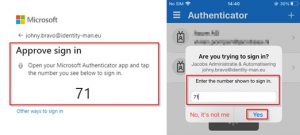
The following steps are to register your Mount Sinai user account for multi-factor authentication (MFA). You will need to do these steps while inside of Mount Sinai network.
Microsoft Authenticator App
On your smart phone – Download and Install the latest version of the Microsoft Authenticator app.
Apple iOS – Scan QR code or go to the App Store to download and install the Authenticator app.
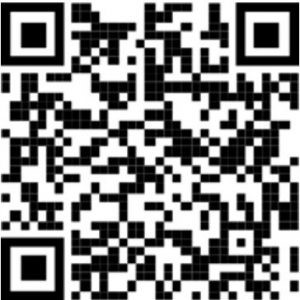
Android – Scan QR code or go to Google Play to download and install the Authenticator app.
| Steps | Action | Illustration |
| 1 | From a web browser, go to:
https://mysignins.microsoft.com/security-info Sign in using your email. If you do not have email, use username@mountsinai.org or username@mssm.edu. If you are already signed in with different company account, please log out from the security-info page. Click Next. |
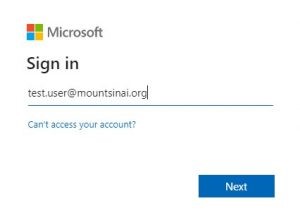 |
| 2 | Enter your password and click Sign In | 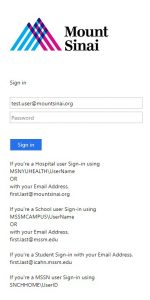 |
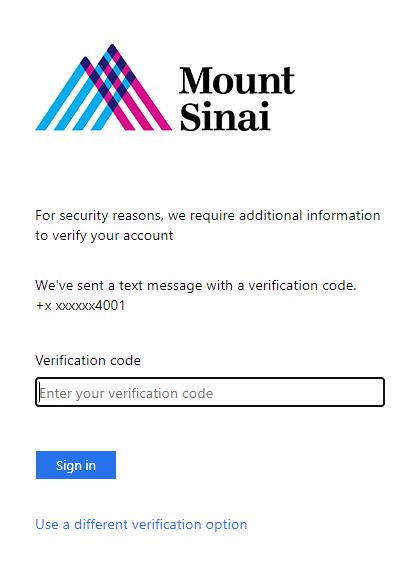
| 3a | If you have registered for Azure MFA already, you will be asked for verification token.
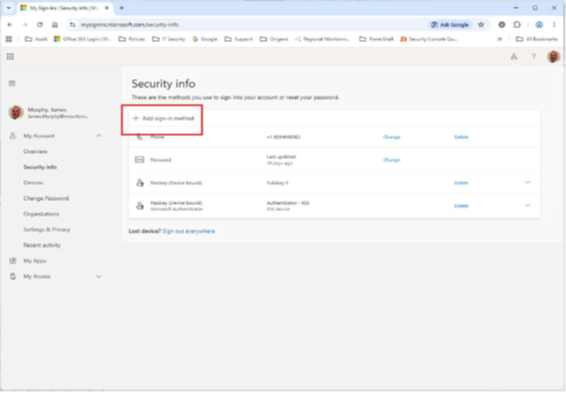
Click “+ Add Sign-In Method” (Make sure you are in Security Info section) Choose Microsoft Authenticator. Click Next two times. You will get a QR code. Go to step 5.
. |
  |
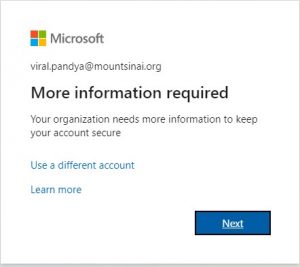
| 3b | If you have not registered for Azure MFA, you will see the window to the right.
Click Next.
. |
 |
| 4 | Click Next again. | 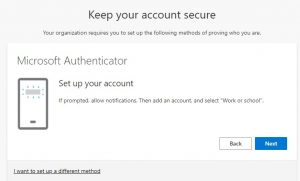 |
| 5 |
DO THIS STEP FROM YOUR PHONE
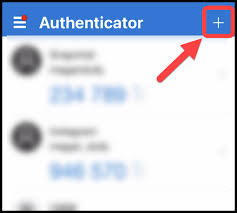
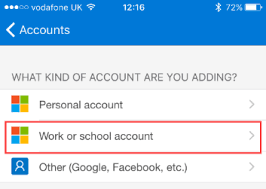
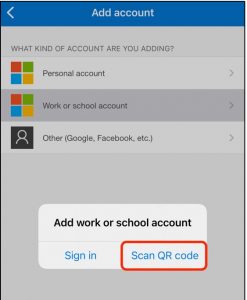
Open the Microsoft Authenticator app on your smart phone, click ‘+’ and select ‘Work and school account’
Click Scan QR Code
|
|
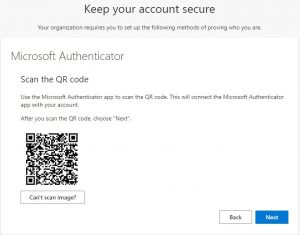
| 6 | Scan the QR code on your browser window from your Authenticator app on the phone.
Click Next on your browser window. Note: the QR code on right is unique for each account. Do NOT scan the one on right.
You should be prompted on your phone to do the number matching. Click Yes on the phone after entering the numbers from the browser. Click Next to register your device.
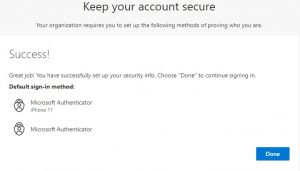
You should see Success! |
|