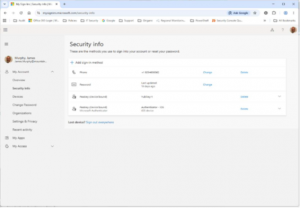
Creating a Passkey in Microsoft Authenticator
- Step 1 – Browse to https://mysignins.microsoft.com and login with the account for which you want to create a passkey.
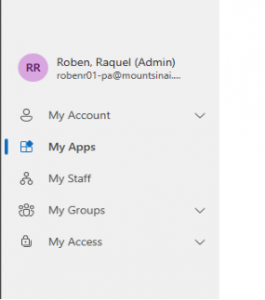
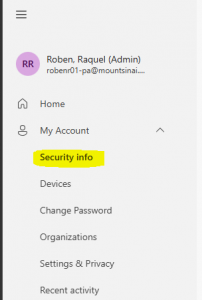
- Step 2 – Click on Security Info in the left side menu.
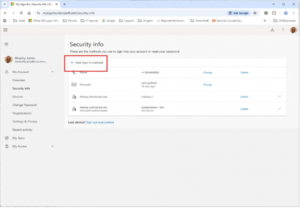
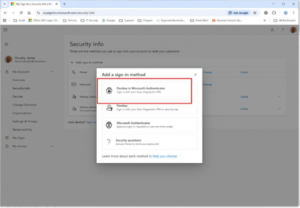
- Step 3 – Click Add sign-in method.
- Step 4 – Click Passkey in Microsoft Authenticator.
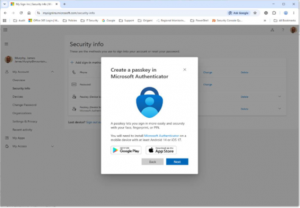
- Step 5 – If you haven’t already done so, please install Microsoft Authenticator on your Mobile Device.
- Click the Next button
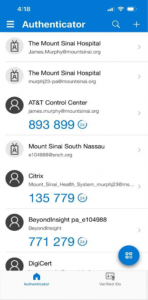
- Step 6 – Open the Microsoft Authenticator app on your mobile device.
- Select the account which you used to log in to mysignins.microsoft.com in step 1.
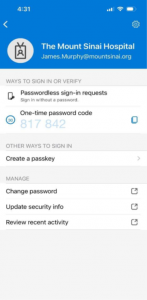
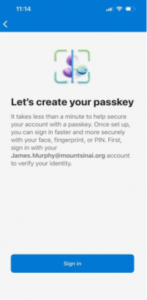
- Step 7. Tap create a passkey
- Step 8. Tap Sign In
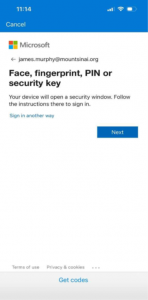
- Step 9. Tap Sign in another way
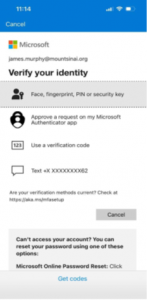
- Step 10. Tap Approve a request on my Microsoft Authenticator app.
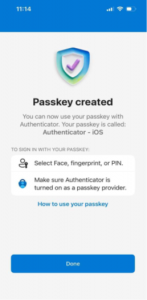
- Step 11. Your passkey is created.
- Tap Done
- Step 12. Return to your PC or laptop
- click the Next button
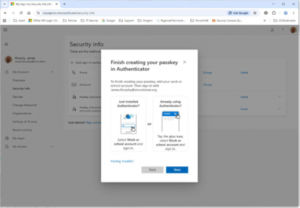
- Step 13. Click Done
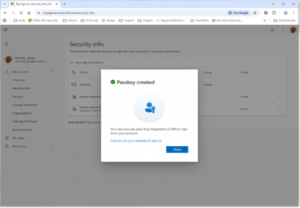
- Step 14. Verify that there is a new entry in Security Info for Passkey (Device bound) Microsoft Authenticator.