Logging on to ZPA
- Zscaler Private Access (ZPA) is a cloud native Zero Trust Network Access (ZTNA) service that provides secure, remote access to private, internal applications without using a traditional VPN.
- It can NOT be used in conjugation with F5 VPN. Please disconnect from F5 VPN before using ZPA.
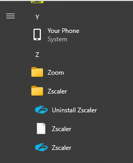
- To start using ZPAa. Double Click to open the Zscaler Client Connector (ZCC) in system tray:

b. Or Launch Zscaler application from the Start menu.
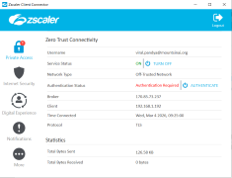
4.You will be asked to Authenticate:
5. Log in using your Email and password.
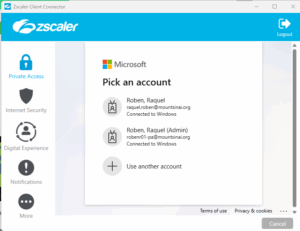
6. You will then be presented with MFA challenge.
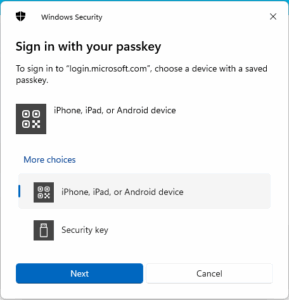
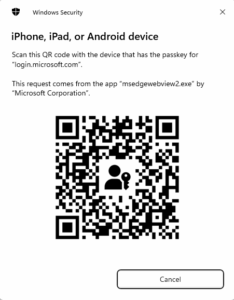
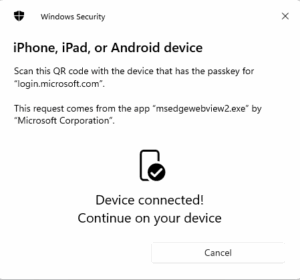
7. You will then see that under the Authentication Status; you have the word Authenticated in green
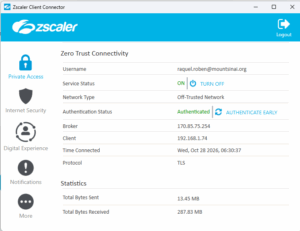
Common Notifications
- The ZPA tunnel will disconnect after 12 hours. You will be required to re-login. There will be notification and red exclamation mark on the Zscaler app in system trey.
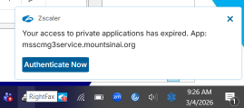
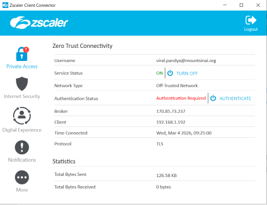
Note: You may see your Status as Authenticated even after 12 hours. However, you will not be able to access internal resources. In this case, you must log-in again by clicking ‘Authenticate Early’.

- If you are on-site (internal network), there is no need to use ZPA and it will be disabled.
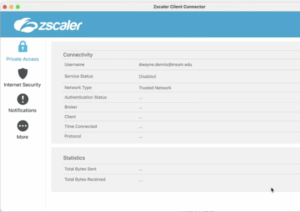
- You may also see different error codes as shown below (it will require re-authentication);
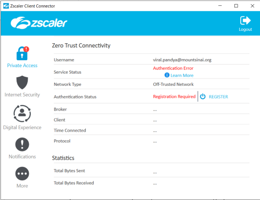
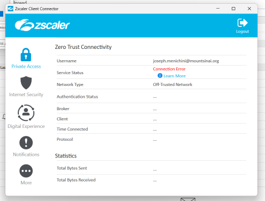
- If you are having issue authenticating, you can also log out and log back in or restart your PC.

NSLookup and PING commands
- To use NSLOOKUP use this syntax below:
nslookup “server hostname” msmc-blox01.mountsinai.org
- PING function disabled by design. Please log in to VDI or a server to utilize ping command.